Most small businesses now run on Microsoft 365: email, Teams, OneDrive, SharePoint and Office apps. That makes it one of the most valuable targets for attackers. A single compromised account can be used to send fraudulent invoices, steal files or launch attacks on your customers.
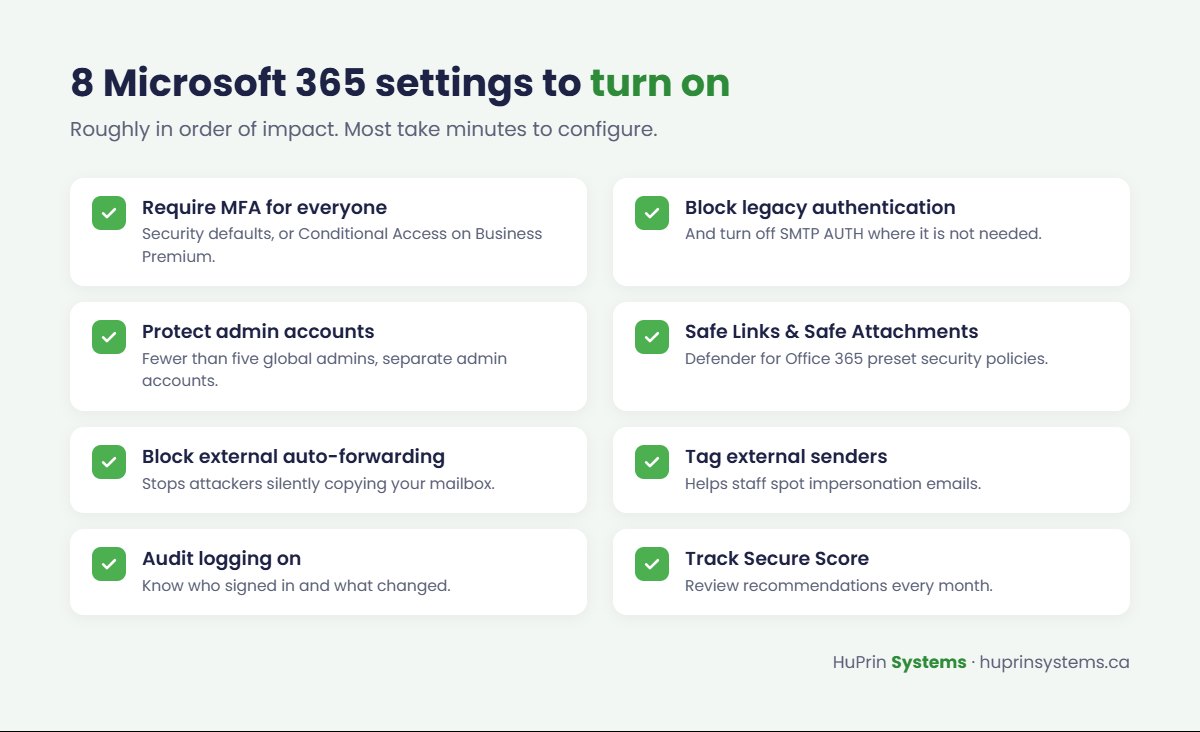
Microsoft 365 includes strong security tools, but many of them are not configured by default or are left at basic settings. Here are eight settings every small business should review, roughly in order of impact.
1. Require multi-factor authentication for everyone
Multi-factor authentication (MFA) is the single most effective protection for Microsoft 365 accounts. If your tenant does not use Conditional Access, turn on Security defaults in the Microsoft Entra admin center, which requires MFA for all users. If you have Microsoft 365 Business Premium, use Conditional Access policies instead, which give you more control. Encourage staff to use the Microsoft Authenticator app rather than text messages.
2. Block legacy authentication
Older sign-in methods used by outdated email clients don’t support MFA, which lets attackers bypass it. Security defaults block legacy authentication automatically. With Conditional Access, create a policy that blocks it, and turn off SMTP AUTH for mailboxes that don’t need it, such as everyone except scanners and line-of-business apps that send email.
3. Protect your administrator accounts
Global administrators can change anything in your tenant. Keep the number small (Microsoft recommends fewer than five), give administrators separate admin accounts that aren’t used for daily email, and require MFA on every admin account. Assign narrower admin roles, such as User Administrator or Exchange Administrator, where possible.
4. Turn on Safe Links and Safe Attachments
Microsoft Defender for Office 365 checks links when they are clicked and opens attachments in a sandbox before they reach the inbox. It is included in Microsoft 365 Business Premium. Enable the Standard or Strict preset security policies in the Microsoft Defender portal to apply Microsoft’s recommended settings in one step.
5. Block automatic forwarding to external addresses
When attackers take over a mailbox, they often set up a rule that quietly forwards every message to an outside address. In the outbound spam policy in Microsoft Defender, set automatic external forwarding to Off, and allow exceptions only for specific mailboxes that need it.
6. Tag emails from external senders
Turn on external sender identification in Exchange Online so Outlook clearly marks messages from outside your organization. It’s a simple visual cue that helps staff spot a fake email pretending to come from the owner or the accounting team.
7. Make sure audit logging is on
Audit logs record who signed in, what was changed and which files were accessed. Without them, investigating a compromised account is guesswork. Confirm that auditing is turned on in Microsoft Purview, and review sign-in alerts for unusual locations.
8. Use Secure Score to track your progress
Microsoft Secure Score, in the Microsoft Defender portal, rates your security configuration and lists recommended improvements in priority order. Check it monthly and work through the recommendations that make sense for your business.
Which features come with which licence?
Some of these protections depend on your Microsoft 365 plan. Security defaults, audit logging, external tagging and forwarding controls are available on all business plans. Conditional Access, Defender for Office 365 and Intune device management come with Microsoft 365 Business Premium.
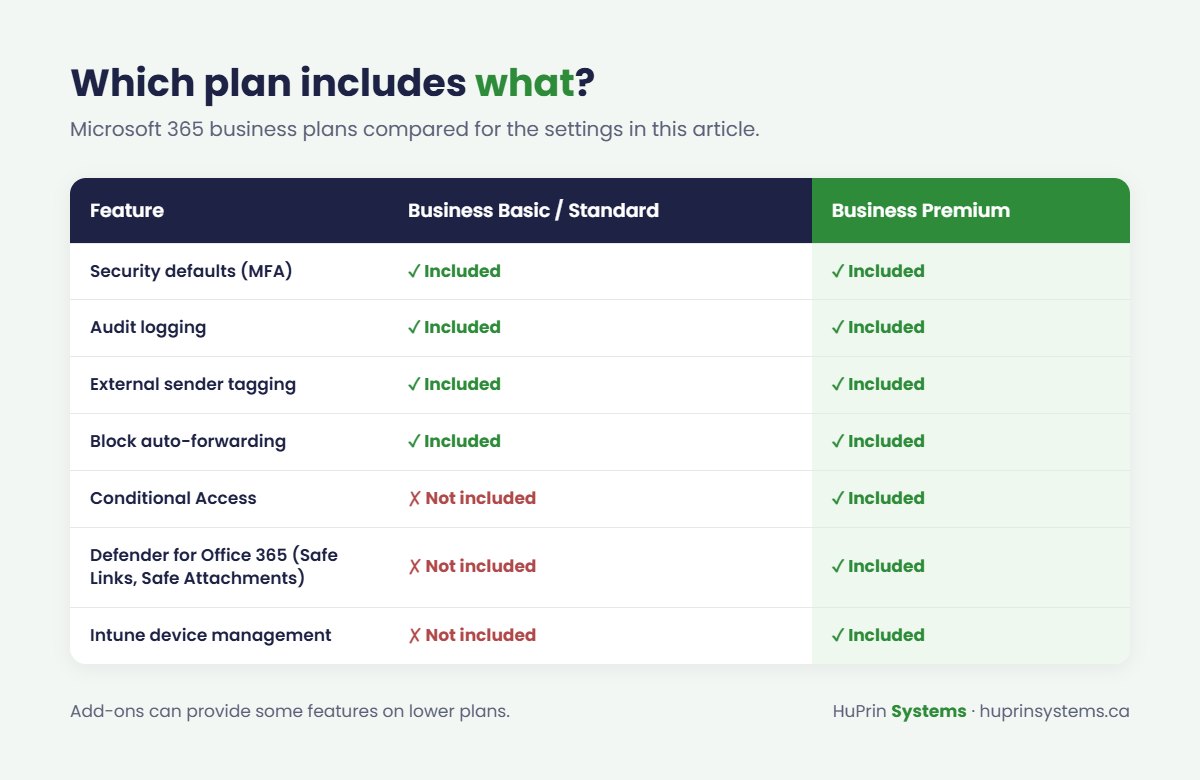
For many small businesses, upgrading to Business Premium is the most cost-effective security investment available, because it replaces several separate tools.
Don’t forget backups
Microsoft keeps your data available, but it is not a full backup service. Deleted items and older versions are only kept for limited periods, and ransomware or a malicious insider can damage files that sync to OneDrive and SharePoint. A third-party Microsoft 365 backup gives you independent copies you can restore from.
Need help securing Microsoft 365?
HuPrin Systems sets up, secures and manages Microsoft 365 for businesses across Canada, from MFA and Conditional Access to Defender policies, device management and backups. Learn more about our managed IT services, or request a free Microsoft 365 security review. We’ll show you where you stand and what to fix first.